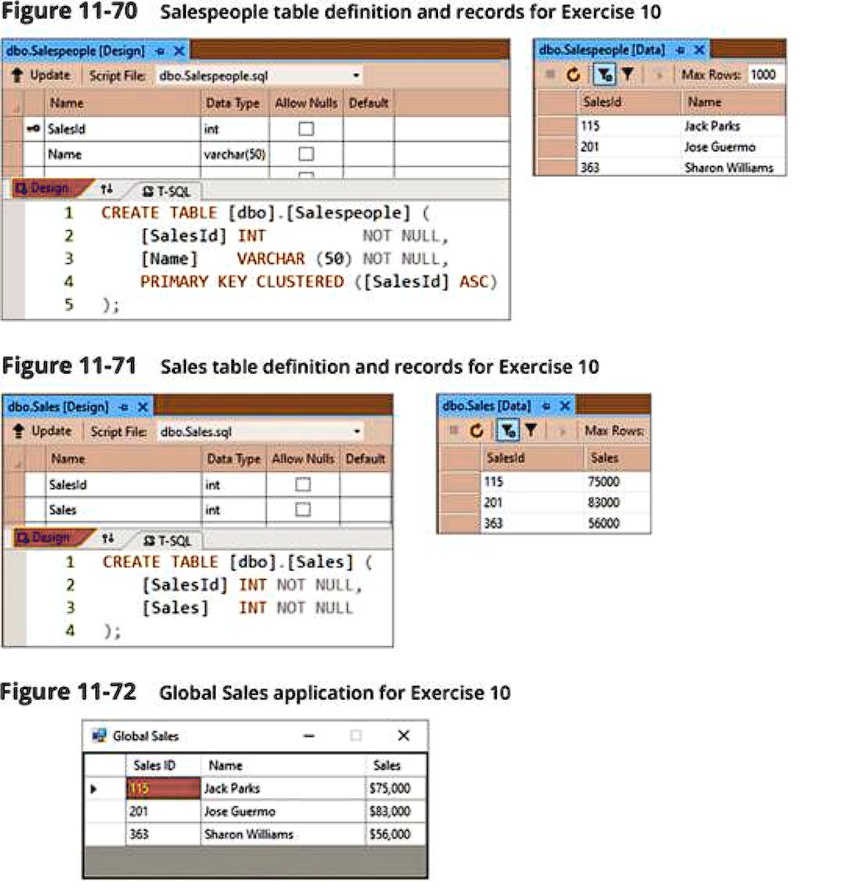
In Visual Basic Figure 11-70 Salespeople table definition and records for Exercise 10
Figure 11-71 Sales table definition and records for Exercise 10
Figure 11-72 Global Sales application for Exercise 10
Global Sales
a. Create a Windows Forms application. Use the following names for the project and solution, respectively: Global Project and Global Solution. Save the application in the VB9eChap11 folder.
b. Create a SQL Server database named Global.mdf. Add the Salespeople table definition and records shown in Figure 11-70 to the database. Remember to click the Update button and then click the Update Database button after defining the table. Then, add the Sales table definition and records shown in Figure 11-71 to the database.
c. Open the Data Sources window and start the Data Source Configuration Wizard. Connect the Global.mdf file to the application. Include both tables in the dataset.
d. Open the DataSet Designer window by right-clicking GlobalDataSet in the Data Sources window and then clicking Edit DataSet with Designer. Add a relation to the window. Relate both tables by the SalesId field. (The Salespeople table is the parent table, and the Sales table is the child table.)
e. Right-click Fill,GetData() in the SalespeopleTableAdapter box and then click Configure. Open the Query Builder dialog box. Add the Sales table to the Diagram pane. The application will need to display the SalesId and Name fields from the Salespeople table along with the Sales field from the Sales table. Select the appropriate check box(es). Execute the query to verify that it retrieves the required information. Then, close the Query Builder dialog box and continue configuring the Fill and GetData methods.
f. Save the solution and then close the GlobalDataSet.xsd window.
g. Use the DataGridView tool, which is located in the Data section of the toolbox, to add a DataGridView control to the form. Drag the appropriate object from the Data Sources window to the control.
h. The DataGridView control should not allow the user to add, edit, or delete records. When the application is started, its interface should appear similar to the one shown in Figure 11-72. Save the solution and then start and test the application.
Figure 11-70 Salespeople table definition and records for Exercise 10
dbo.Salespeople[Data]X L Max Row 1000
UpdateScript File dbo.Salespeople.sql Name Data Type Allow Nulls Default Salestd int Name varchar(50)
SalesId 115 201 363
Name Jack Parks Jose Guerma Sharon Williams
Design 1 2 3 4 5
T-SQL
CREATE TABLE [dbo].[Salespeople] [SalesId] INT NOT NULL [Name] VARCHAR(50) NOT NULL PRIMARY KEY CLUSTERED [SalesId] ASC );
Figure 11-71
Sales table definition and records for Exercise 10
dbo.Sales[Design UpdateScript File Name SalesId Sales
dboSales [Data]X Max Row SalesId Sales 115 75000 201 83000 363 56000
Data Type Allow Nulls Default int int
Design 1 2 3 4
T-SQL
CREATE TABLE [dbo].[Sales] [SalesId] INT NOT NULL, [Sales] INT NOT NULL );
Figure 11-72 Global Sales application for Exercise 10
Global Sales SalesId Name 115 Jack Parks 201 Guerma Jose 363 Sharon Williams
X
Sales $75,000 $83,000 $56,000