You will create a popup window that contains the following:
Text with your name
A button that will output your major in the shell window
Another button that will close the window
Some suggestions:
Look up a list of monospaced fonts and try one. In the example below I used Consolas and sized
it to 24 point, but other monospaced fonts are available. I also added a padding of 10 pixels in
both the x- and y-directions, but this is not required.
Look at the lecture file that I put in eCampus. It already has most of what you need - you just
need to add a second button.
The two buttons must have different names. Use the pack geometry method for each button.
To print out your major I recommend creating a function that has one Python command:
printing out your major. Define the function BEFORE you call it in your button. Again - the
lecture file I loaded in eCampus will have most of what you need.
For the button to close the window, use the "destroy" option that we went over in class. See the
lecture file I loaded in eCampus
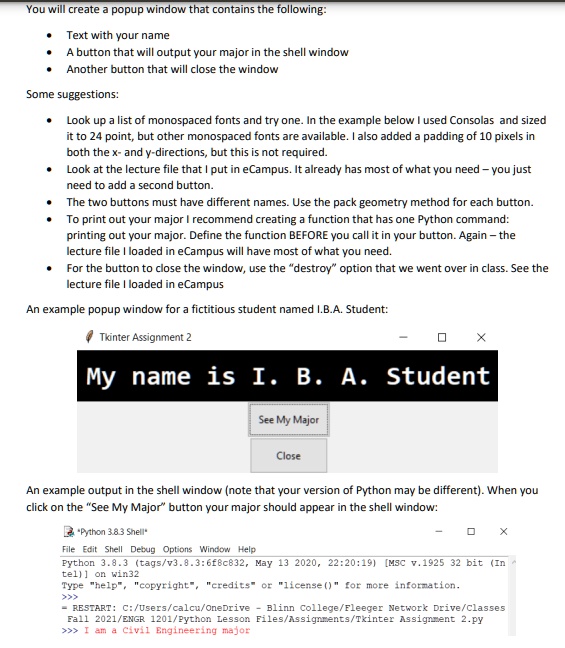
An example popup window for a fictitious student named I.B.A. Student:
Tkinter Assignment 2
X
My name is I. B. A. Student
See My Major
Close
An example output in the shell window (note that your version of Python may be different). When you
click on the "See My Major" button your major should appear in the shell window:
"Python 3.8.3 Shell*
File Edit Shell Debug Options Window Help
X
Python 3.8.3 (tags/v3.8.3:6f8c832, May 13 2020, 22:20:19) [MSC v.1925 32 bit (In
tel)) on win32
Type "help", "copyright", "credits" or "license()" for more information.
>>><br>- RESTART: C:/Users/calcu/OneDrive - Blinn College/Fleeger Network Drive/Classes
Fall 2021/ENGR 1201/Python Lesson Files/Assignments/Tkinter Assignment 2.py
>>> I am a Civil Engineering major