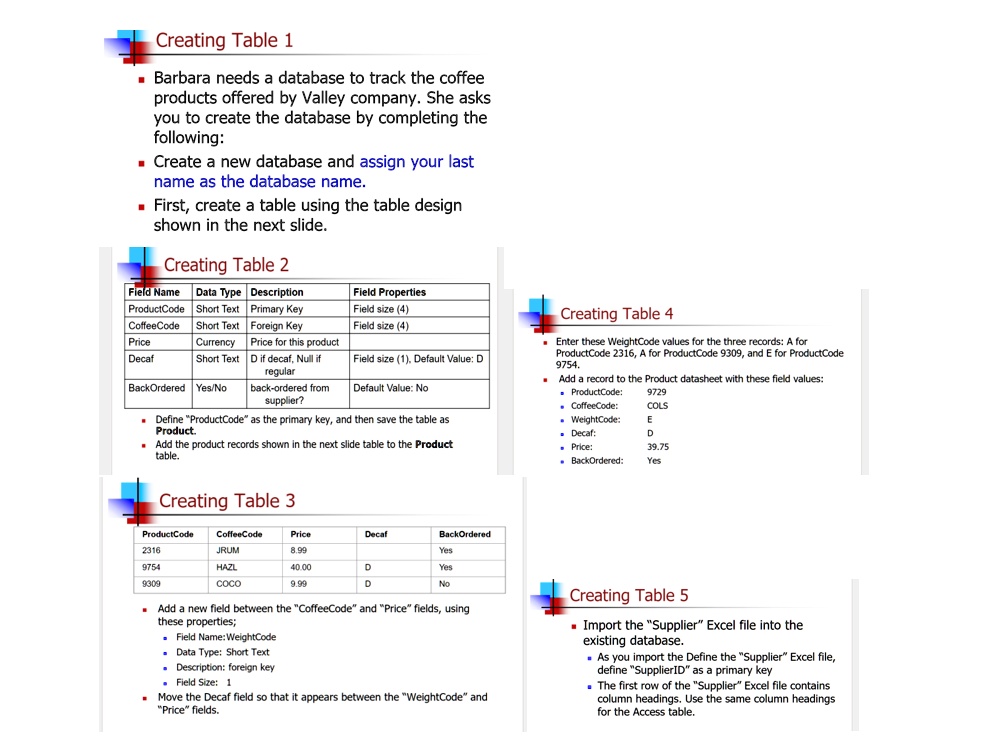
Creating Table 1
Barbara needs a database to track the coffee products offered by Valley company. She asks you to create the database by completing the following:
Create a new database and assign your last name as the database name.
First, create a table using the table design shown in the next slide.
Creating Table 2
able[[Field Name, Data Type, Description, Field Properties], [ProductCode, Short Text, Primary Key, Field size (4)], [CoffeeCode, Short Text, Foreign Key, Field size (4)], [Price, Currency, Price for this product], [Decaf, Short Text, able[[Dif decaf, Null if], [regular]], Field size (1), Default Value: D], [BackOrdered, Yes/No, able[[back-ordered from], [supplier?]], Default Value: No]]
Define "ProductCode" as the primary key, and then save the table as Product.
Add the product records shown in the next slide table to the Product table.
Creating Table 4
Enter these WeightCode values for the three records: A for ProductCode 2316, A for ProductCode 9309, and E for ProductCode 9754.
Add a record to the Product datasheet with these field values:
ProductCode: 9729
CoffeeCode: COLS
WeightCode: E
Decaf: D
Price: 39.75
Backordered: Yes
Creating Table 3
able[[ProductCode, CoffeeCode, Price, Decaf, BackOrdered], [2316, JRUM, 8.99, , Yes], [9754, HAZL, 40.00, D, Yes], [9309, COCO, 9.99, D, No]]
Add a new field between the "CoffeeCode" and "Price" fields, using these properties:
Field Name: WeightCode
Data Type: Short Text
Description: foreign key
Field Size: 1
Move the Decaf field so that it appears between the "WeightCode" and "Price" fields.
Creating Table 5
Import the "Supplier" Excel file into the existing database.
As you import the Define the "Supplier" Excel file, define "SupplierID" as a primary key
The first row of the "Supplier" Excel file contains column headings. Use the same column headings for the Access table.